 noteboard
Bring in the material you are already using
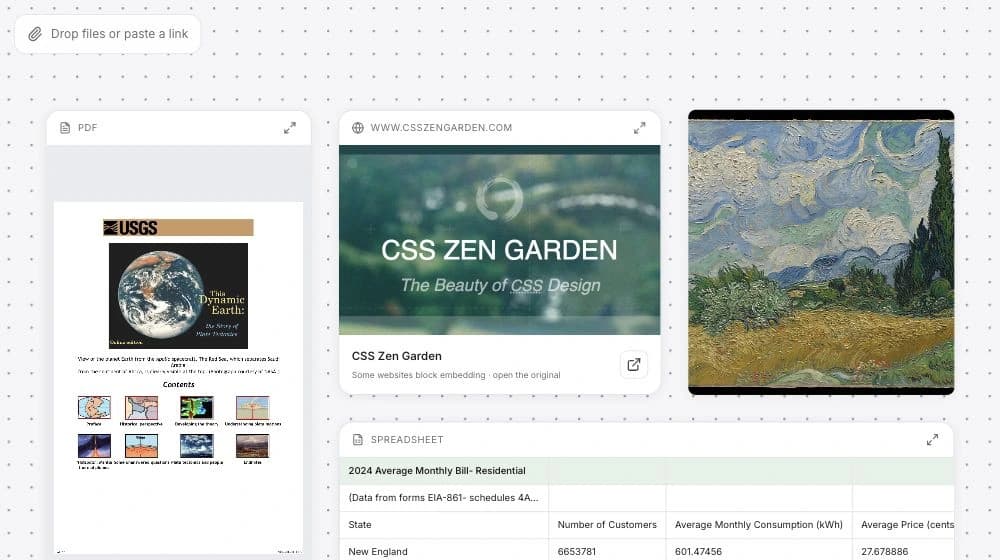
Drop, paste, or upload files and arrange them beside the relevant ideas. Add a PDF report, an image reference, a recording, a video, or a spreadsheet. Website references and supported player links can sit on the board too.
Give a reference a useful place in the project. Put a research paper beside the claim you want to check, for example, or an image beside a design question. A short note about why you saved it makes the collection easier to return to.
| Workflow | What happens |
|---|---|
| Attach and preview | Keep references on the canvas. Supported formats preview; other files remain available to download. |
| Ordinary board AI | Attachment titles and your written notes can provide context. Attaching a file does not automatically make its full contents part of a request. |
| Explicit source conversion | For supported PDFs, public webpages, audio, and video, extract and review the text or transcript before generating an editable mind map. |
Open the reference without losing the surrounding notes
Read a PDF, play supported audio or video, and inspect a read-only first-sheet XLSX preview on the canvas. Keep your interpretation beside the source so you can move between the detail and the question it helps answer.
Website embedding follows the original site's permissions, and an open-original link gives you a route back to the page. YouTube and Vimeo embeds are player references; they are not inputs for video-to-mind-map conversion. Other files remain available to download.
The demo uses real published documents, an artwork, a website, and a spreadsheet. It illustrates how different kinds of project material can share a board without needing to become the same kind of note.
Add your thinking beside the source
A reference shows the material; your note explains what matters about it. Keep an observation separate from an interpretation, and add a question when you still need to check a detail. Connections can make those roles easier to follow during a review.
Use explicit source conversion for a supported PDF, public webpage, audio recording, or video file. Review the extracted text or transcript, choose a focus, and keep the source references with the resulting notes. Attaching the file alone does not perform this conversion.
Example: gather the sources for a research article
Imagine preparing an article with a report, a table of data, and an interview recording. Keeping them on one board gives each source a place beside the point you want to make, rather than leaving the explanation in a separate document.
When someone reviews the article, they can follow the observation to the relevant reference and see which questions are still open. The example describes an organizing method, rather than making claims about the contents of the demo files.
A reference with a purpose
- Report
- Keep the PDF beside the specific passage or finding you want to discuss.
- Project data
- Place the spreadsheet beside the comparison you plan to check.
- Interview
- Add the recording beside a note about the point you want to revisit.